In this tutorial, you’ll learn how to create a table of contents in Adobe Acrobat.
- Open your PDF in Adobe Acrobat.
- On the right side pane, click Organize Pages.
- Click Insert > Blank page, place it on the first page, then click OK.
- Click Close to close the Organize Page options.
- On the right side pane, click Edit PDF.
- Add your TOC text on the blank page (type your section titles).
- On the top toolbar, Click Link > Add or edit a link.
- Drag to draw a rectangle over the first TOC entry you want to make clickable.
- In the Create Link dialog box, set your preferences for your link.
- Choose Go to a page view, then Next.
- Go to the page you want to link to, then click Set Link.
- Repeat steps 8–11 for the rest of your TOC entries.
- Click Close to exit Edit PDF options.
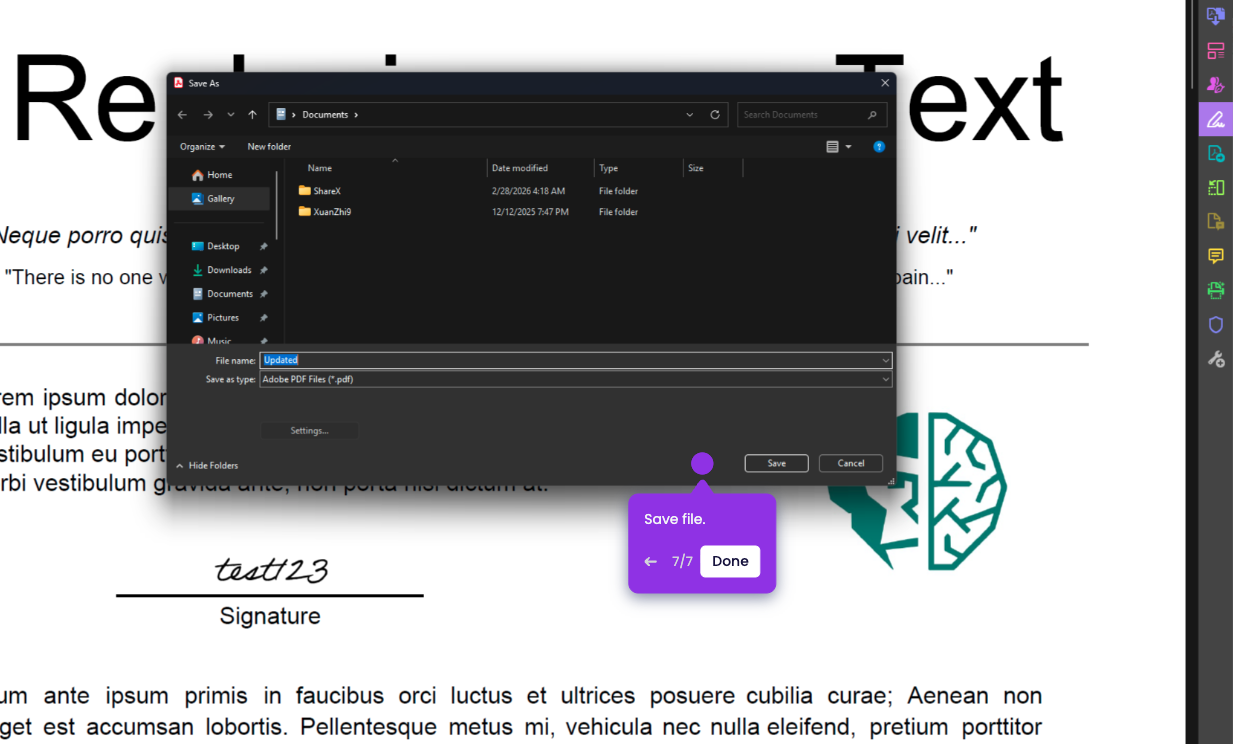
- Click File > Save as.
- Choose a folder, name the file, then click Save.