In this tutorial, you’ll learn how to create a qr code in Adobe Acrobat
- Open the PDF document in Adobe Acrobat Pro.
- On the top menu, click Tools.
- Select Prepare Form.
- Click Start.
- In the top toolbar, click Add Barcode (barcode field).
- Move your cursor to the page, then click where you want to place the barcode field.
- Double-click the barcode field you added to open its Properties.
- Click the Options tab.
- Under Symbology, select QR Code, then click Close (or OK).
- Click Close to exit Prepare Form.
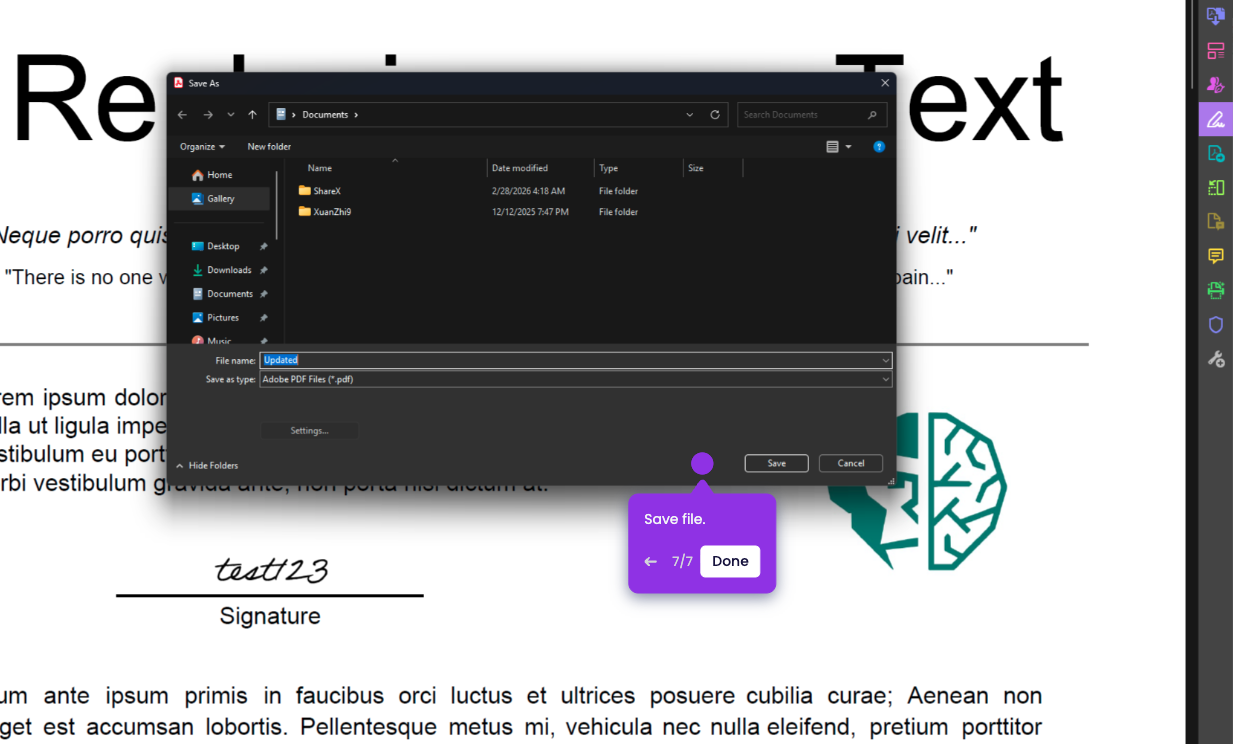
- Click File > Save As.
- Choose a folder, name the file, then click Save.