In this tutorial, you’ll learn how to create a flowchart in Adobe Acrobat
Important note: Acrobat isn’t a dedicated diagram tool. For a polished flowchart, it’s usually better to build it in Word, PowerPoint, Visio, or a diagram app, then export to PDF. In Acrobat, you can still make a basic flowchart using drawing markups.
- Open Adobe Acrobat.
- On the top menu bar, click File > Create > Blank page. (Or open an existing PDF you want to draw on.)
- On the right-side pane, click Comment.
- In the Comment toolbar, open the Drawing Tools, then choose a shape (for example, Rectangle or Circle).
- Click and drag on the page to place your first flowchart shape.
- Click Text Box (or Add text comment), then type a label for the shape.
- Use Arrow, Line, or Connected Lines to connect your shapes. (Hold Shift to keep lines straight.)
- Repeat steps 4–7 until your flowchart is complete.
- Click Close to exit the Comment tool.
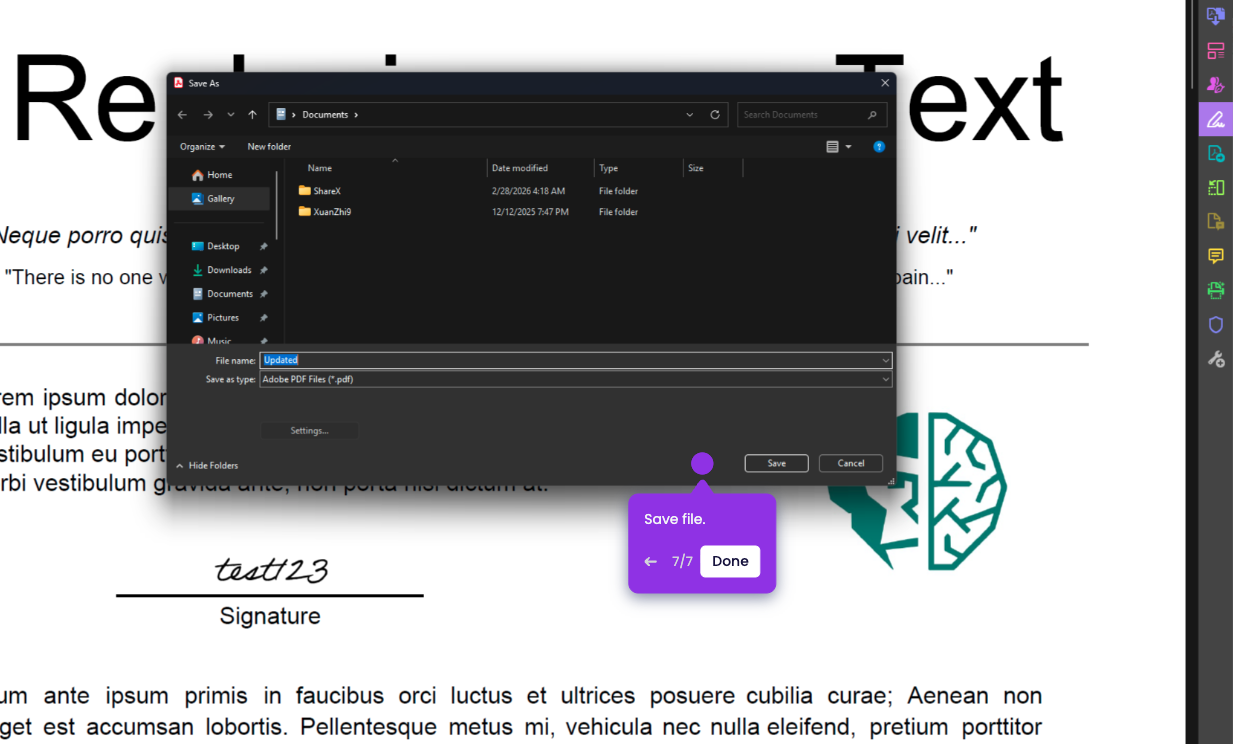
- Click Save As below the Home tab.
- Choose a folder where you want to save the file.
- Type a file name, then click Save.