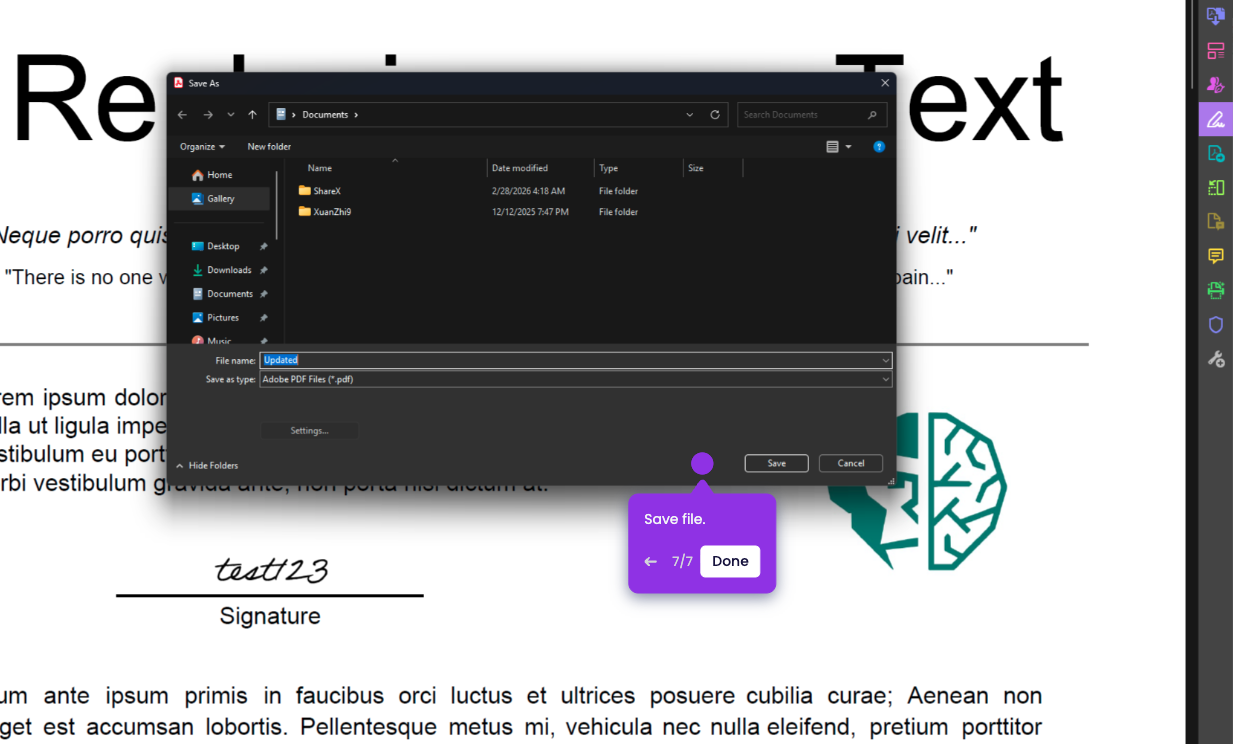
In this tutorial, you’ll learn how to add a date in Adobe Acrobat
- Open the PDF file you want to add a date to.
- On the upper section, click Tools.
- Click on Prepare form.
- Click on Start.
- Click Add a Date Field on the tools in the upper section.
- The Date field will stick to your mouse pointer. Click anywhere on the document where you want to add your date.
- Add a field name for your date field.
- Click anywhere on the document.
- Click Close.
- Click on the Date field you just added and type your desired date.