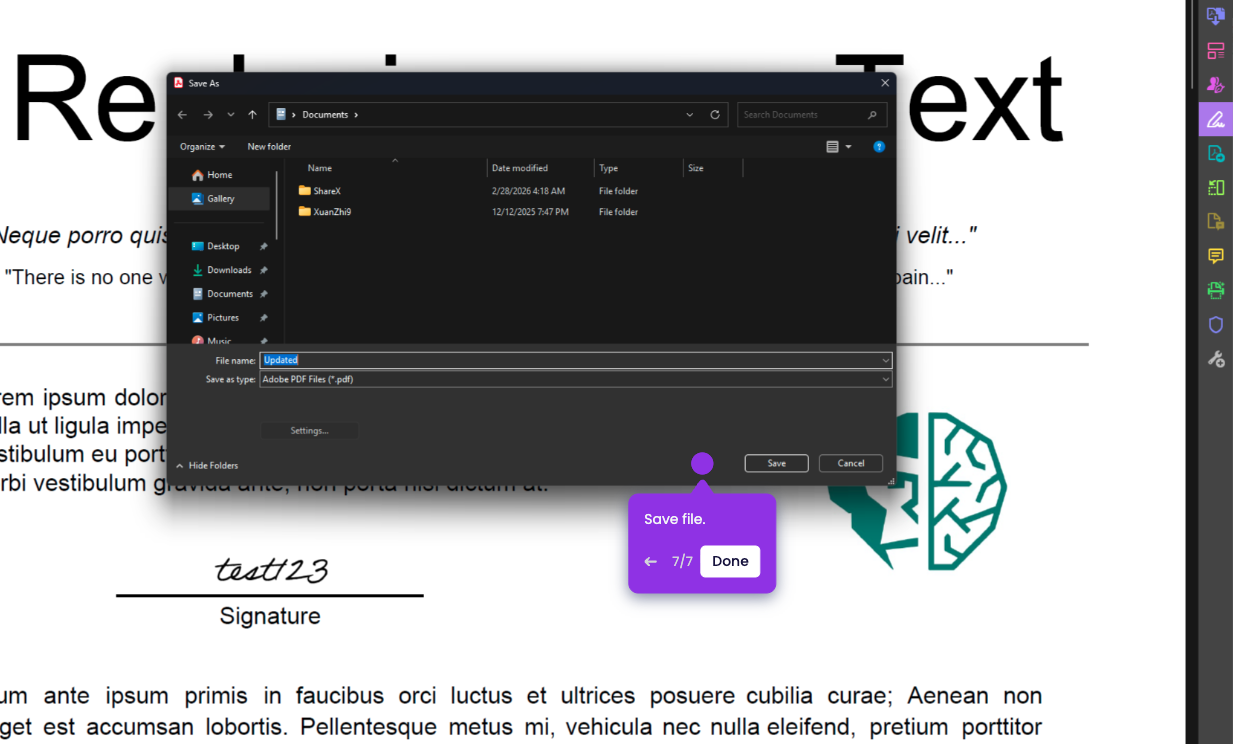
In this tutorial, you’ll learn how to add check boxes in Adobe Acrobat
- Open the PDF file you want to add check boxes to.
- On the upper left side, click the Tools tab.
- On the list of tools, click Prepare form.
- When Acrobat asks you to select a document, click Start if your PDF is already open.
- In the top toolbar, click the Checkbox icon.
- Click anywhere on the document where you want to place the checkbox.
- Enter a field name for the checkbox. click All Properties to customize your checkbox.
- In the Properties dialog, adjust the settings you want, then click Close. After that, click anywhere on the document to apply it.
- Repeat the steps depending on how many checkboxes you need.
- Click Close to exit Prepare Form.
- You have now added checkboxes to your file.