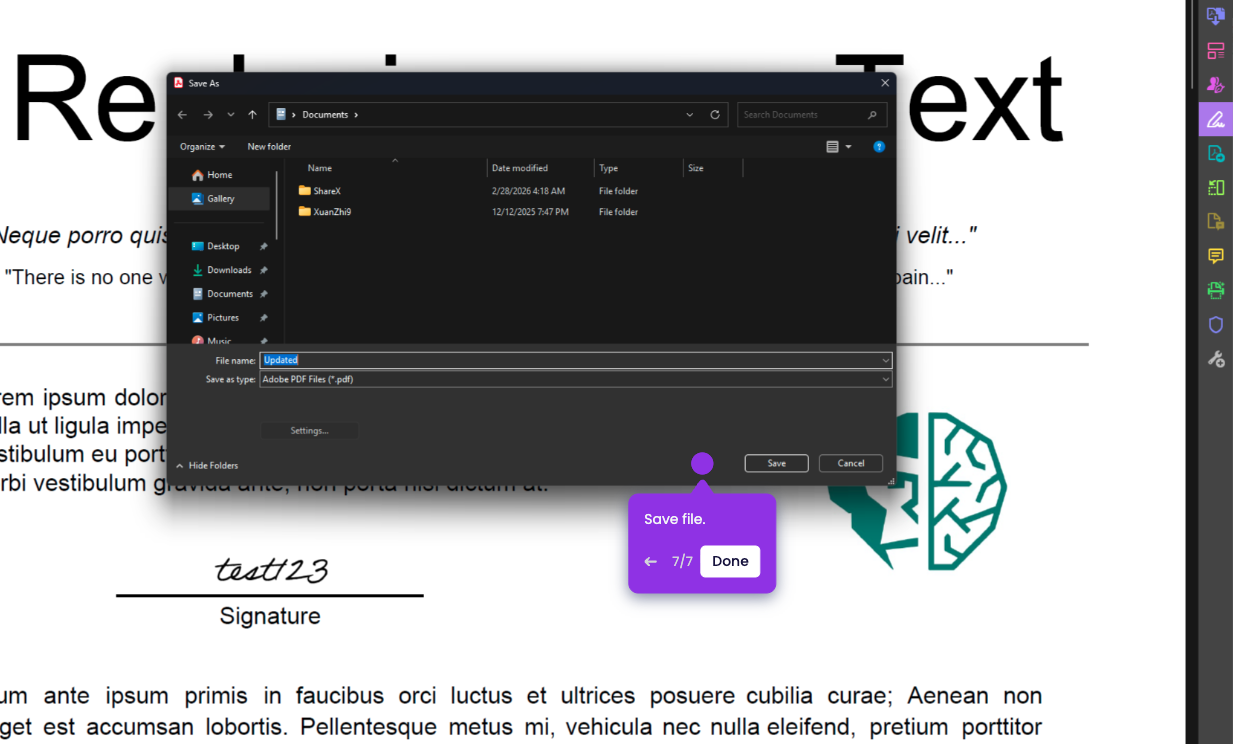
In this tutorial, you’ll learn how to add a hyperlink in Adobe Acrobat.
- Open the PDF file you want to add a hyperlink to.
- On the right-side panel, click Edit PDF.
- At the top of the screen, click Link.
- Click Add/Edit Web or Document Link.
- Highlight the word or section you want to turn into a hyperlink.
- Select the type of link action you want, then click Next.
- Enter your link, then click OK.
- Click Close to exit Edit PDF
- You should now see your selected text or area as a link.
Optional: You can adjust the link appearance, such as a visible or invisible rectangle.